


Office 2024 Standard / Pro Plus LTSC
Phone Activation Guide
Step 1: Download and Install Office 2024 Standard / Pro Plus LTSC
- Download the installer here
- Install Office by launching the installer.
- Follow the on-screen instructions to install Office 2024 Standard / Pro Plus LTSC.
Step 2: Open Office and Go to Activation
- Open any Office application (e.g., Word or Excel).
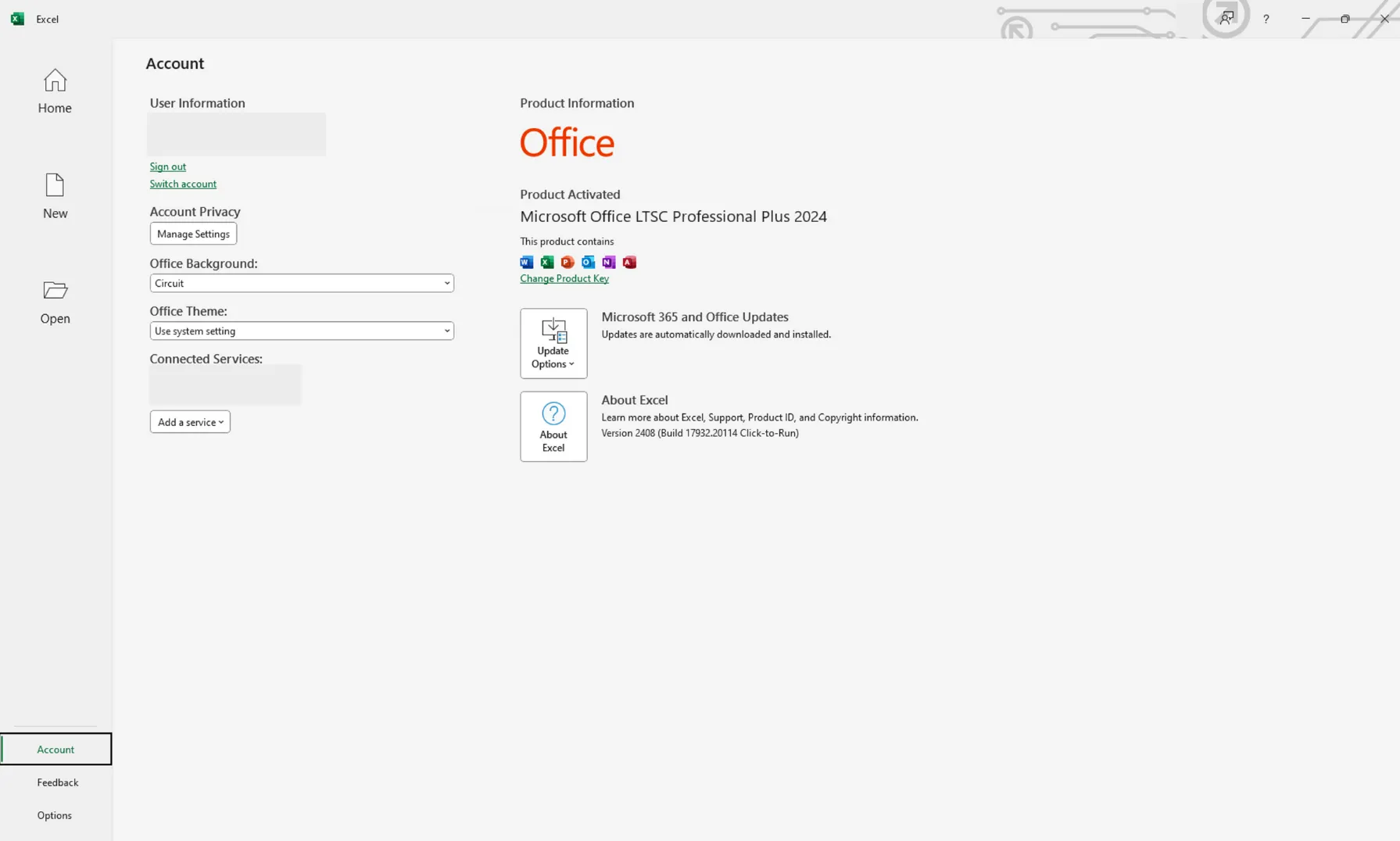
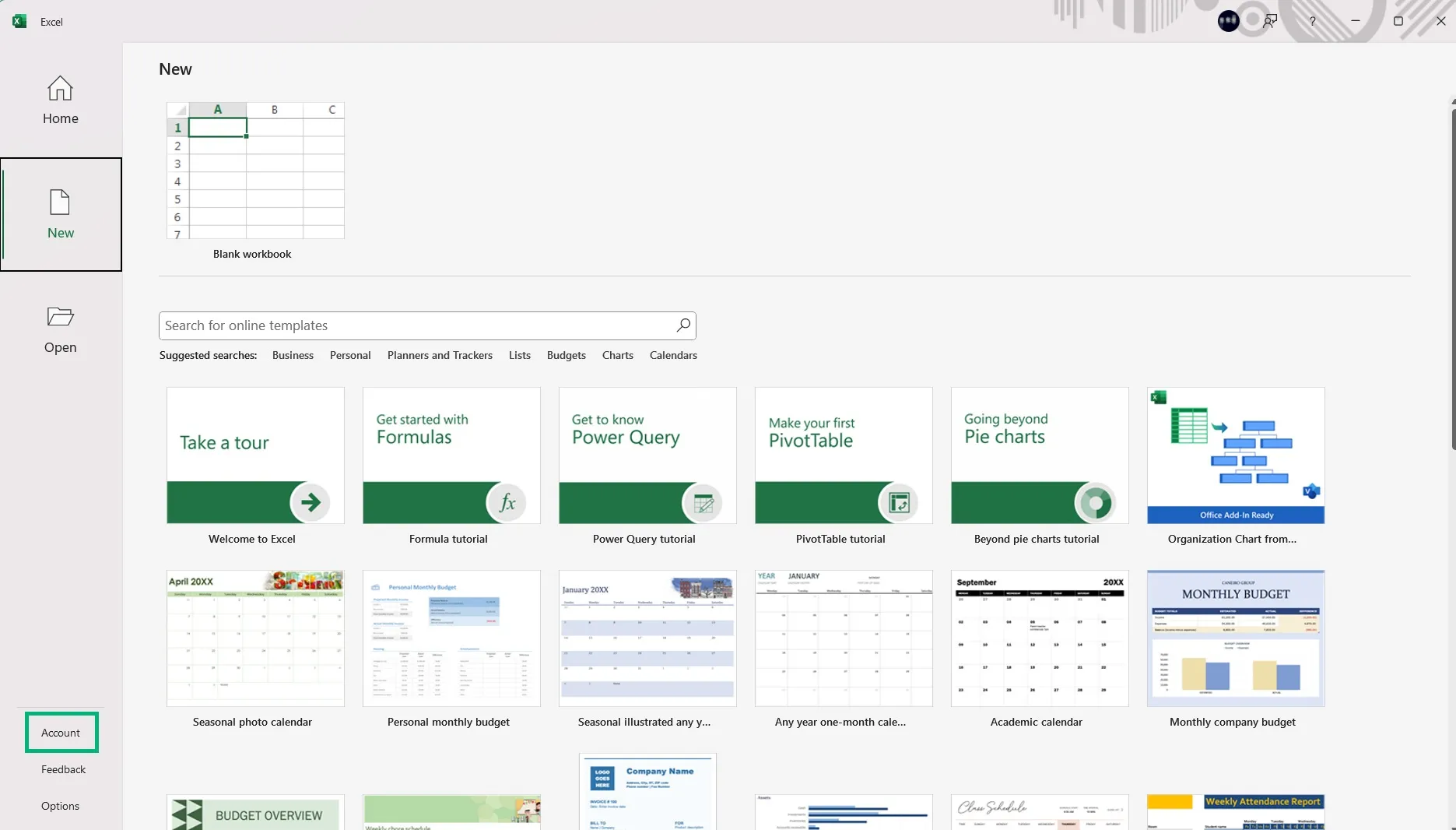
- Click on “Account” (on the bottom left corner), or on “File” > “Account”.
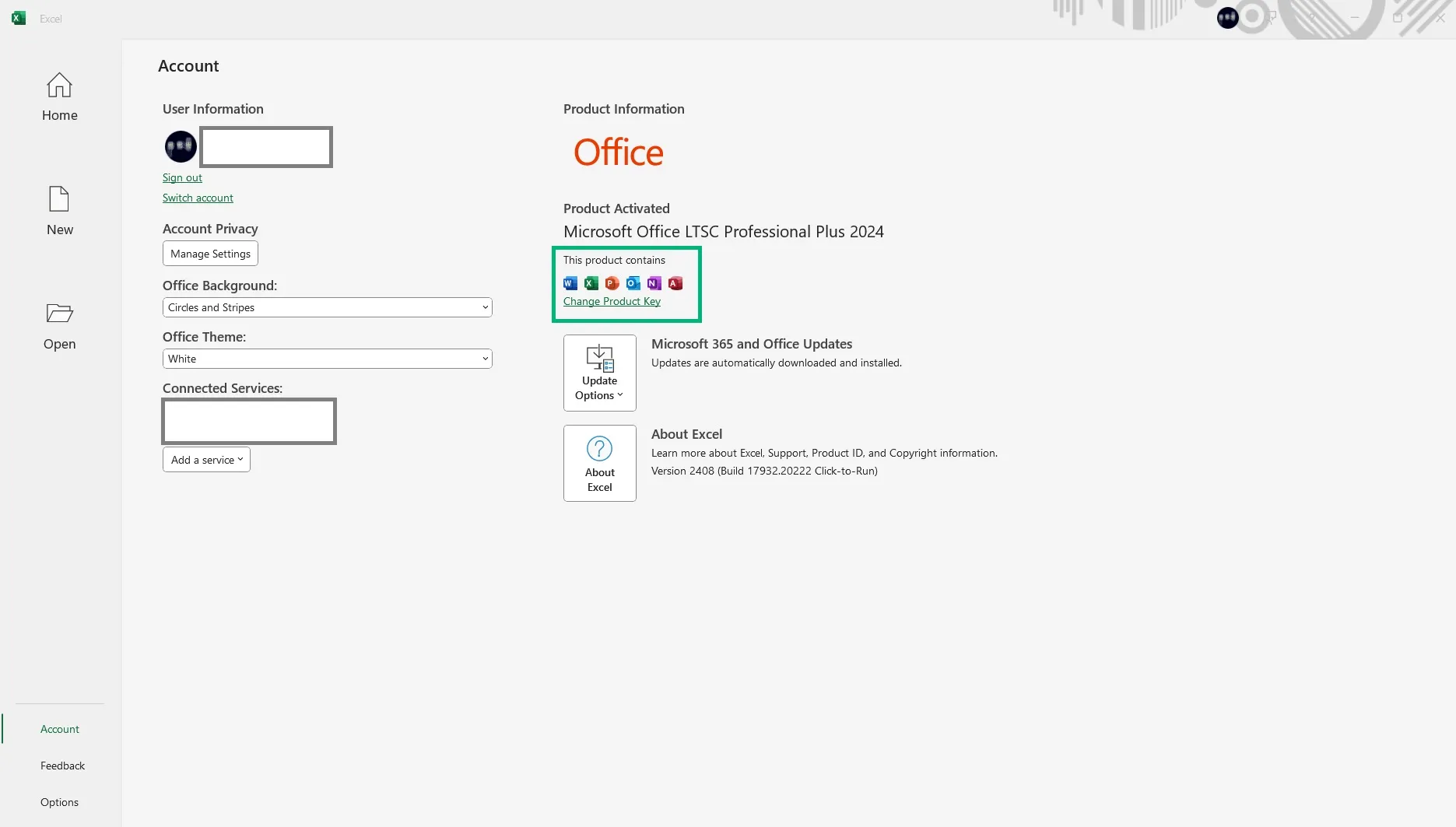
- Under “Product Information”, click “Change Product Key”.
Step 3: Enter Your Product Key
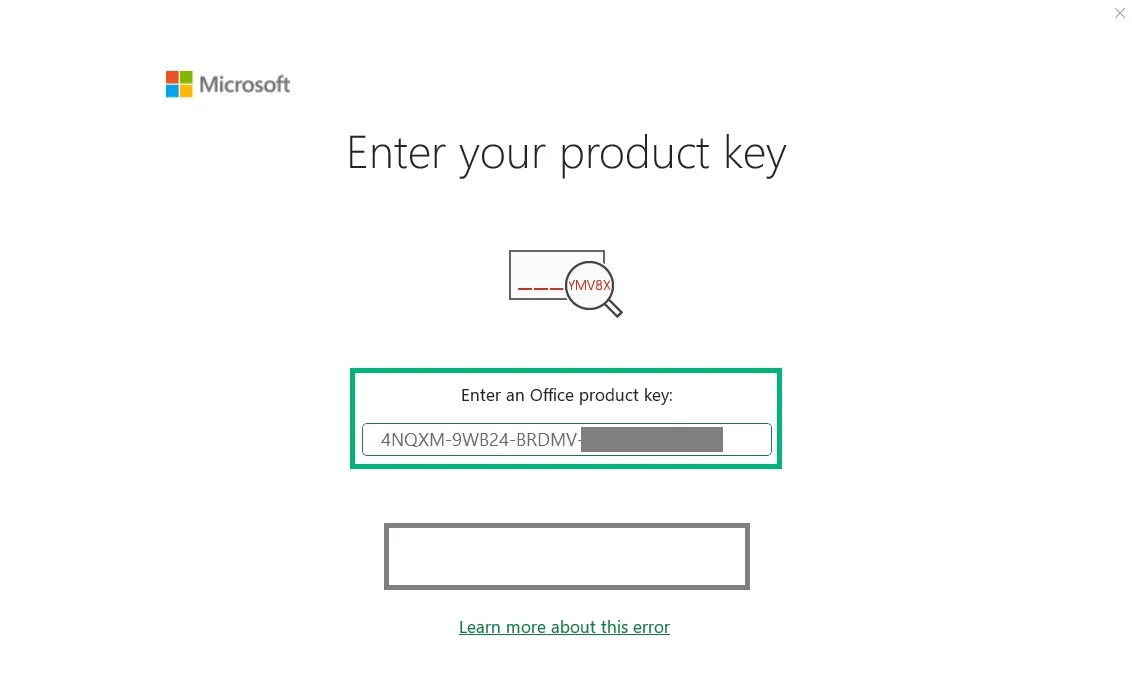
- Enter your 25-character product key provided with Office 2024 LTSC.
- Click “Next”.
- If online activation fails, click “Activate by Phone”.
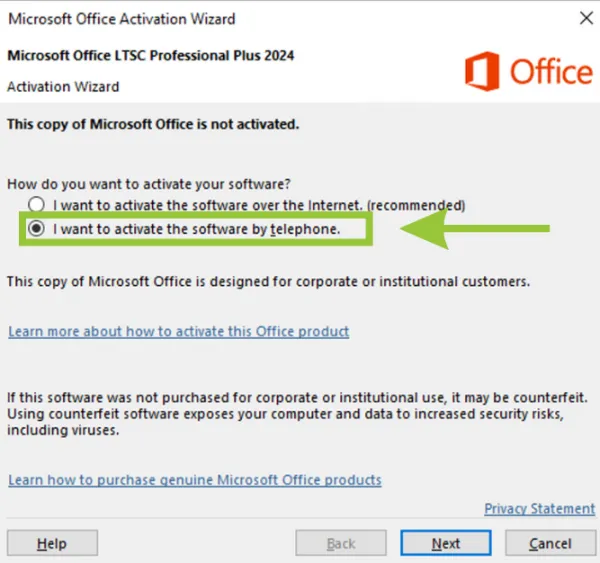
Step 4: Generate the Installation ID
- Select your country/region from the drop-down menu.
- The Installation ID will be displayed as a set of numbers.
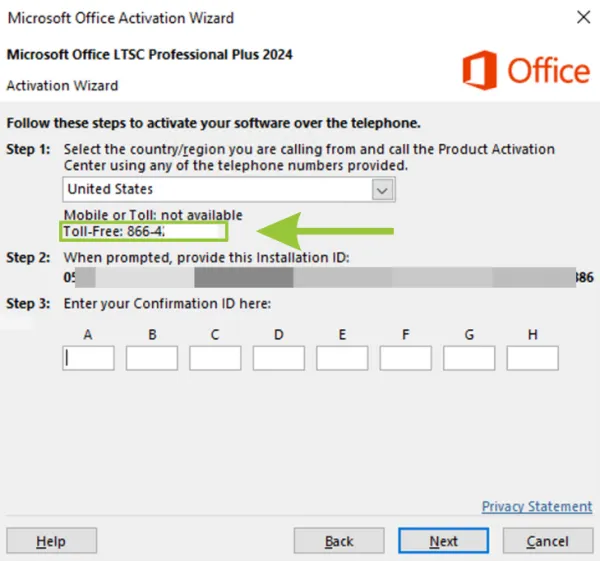
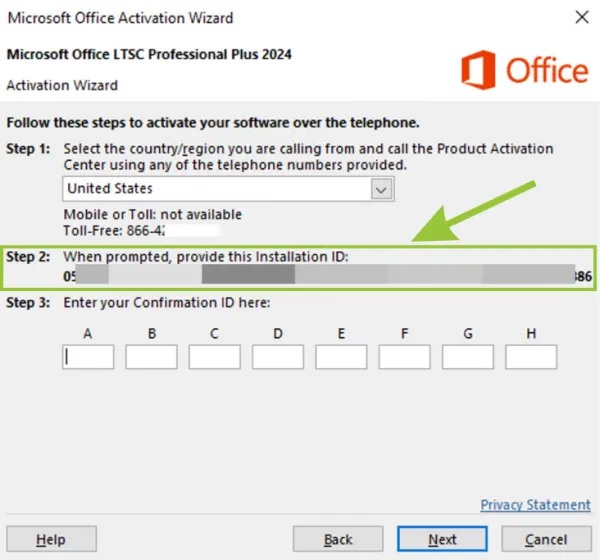
Step 5: Call Microsoft Activation Center
- Dial the Microsoft Activation Center phone number shown on your screen.
- Follow the automated prompts and provide the Installation ID when asked.
- If asked how many times the key was previously activated, make sure to answer 0 (zero).
- Microsoft will generate a Confirmation ID for you.
Step 6: Enter the Confirmation ID
- Enter the Confirmation ID into the corresponding fields.
- Click “Next” and then “Activate”.
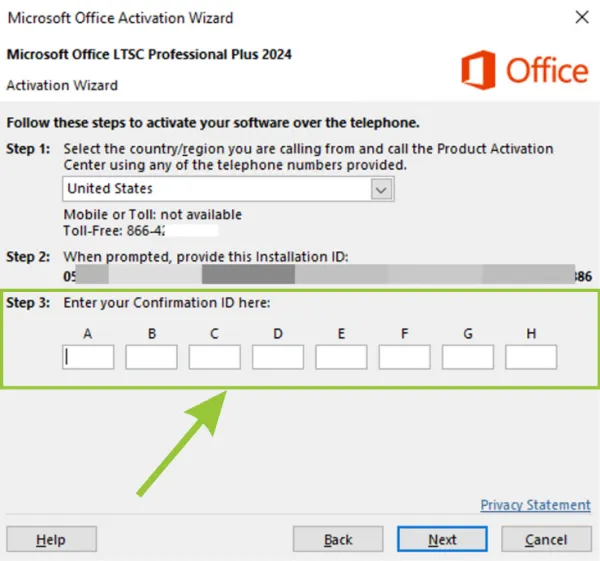
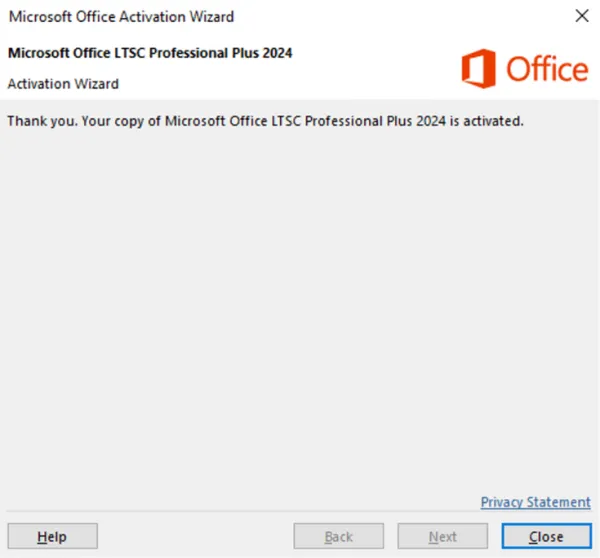
Step 7: Verify Activation
- Open any Office application.
- Go to File > Account and check the activation status.
- If you see “Product Activated”, your Office is successfully activated!